
Thredbo Team Info Hub
This section contains a range of resources for Thredbo Team Members. If you have questions please reach out to the People & Culture Team located in the Valley Terminal Admin Office, via email: [email protected] or call us on 02 6459 4186.
Team Member Perks
As a Thredbo team member, you’ll enjoy exclusive perks with your Thredbo Team Member Season Pass! This pass gives you access to the mountain, gym, tennis courts, golf course, plus loads of discounts across Thredbo.
When you redeem your pass, a $10 donation is payable. This goes directly to the EVT Charity Program, helping make a positive impact while you enjoy all the benefits!
Your season pass includes;
- Seasonal lift access – hit the slopes or trails all season long
- Thredbo Leisure Centre access
- Plus 50% off Mission Inflatable & Zero Gravity Trampoline.
- Unlimited Alpine Coaster rides (blackout dates may apply during peak periods)
- 1 x Golf Round per day
- 1 x 1 hour Tennis court hire per day (bookings required & Summer only)
- 20% off food & drink at Thredbo owned venues.
- Save 25% off full priced items at Thredbo Retail
(Excludes GoPro, Backcountry Beacons and Sale Items. Minimum spend of $20) - Save 25% off full priced items at Thredbo MTB Retail:
(Excludes bikes, Leatt, GoPro & sale items. Minimum spend $20)
How to claim your Thredbo Team Member Season Pass:
- Log in to your Online Shop Account
- Navigate to Team Member Perks tab, then select ‘Passes’ from the drop-down list
- Add the pass products to your cart and complete the checkout process.
- Upload a passport-style photo to your profile
- Print your Team Member Pass at any MyThredbo Card Kiosk (Valley Terminal or Friday Flat)
Your team member pass and benefits are available only while employed with Kosciuszko Thredbo and meeting the minimum required work hours
Full terms and conditions are available via the Finer Details & Application Forms section on this page.
The mountain is yours to explore on your days off! Enjoy unlimited riding and lift access this summer. In addition to your Thredbo Team Member Season Pass, you’ll enjoy amazing summer perks, including:
- Discounted Bike Rentals – up to 70% off Enduro and Downhill bike rental. See details below.
- MTB Clinics – Save up to 70% on 2 Hour MTB clinics!
- Scenic Lift Access (offered during the summer operating period)
- MTB lift access (offered during the summer operating period)
- Save up to 20% on Entry for Cannonball MTB Festival
- Save up to 60% Women’s Ride Days
- Discounted Learn to Swim Programs
See the Team Member Perks page for details and how to book (Click to Access)
Team Member Summer Bike Rentals
Enjoy up to 70% off Enduro and Downhill bike rentals, including a full-face helmet and body armour.
70% off: Norco Shore Park, Aurum A7 & Sight
30% off: Specialized Status & Stumpjumper 15
*Blackout dates apply during peak holiday periods.
Please Note: Perks and initiatives are reviewed each season and may change. They’re offered during the summer operating period and are not guaranteed. Full terms and conditions are available via the Conditions & Application Forms section on this page.
The mountain is yours to explore on your days off! Enjoy unlimited riding and lift access this winter.
In addition to your Season Pass, you’ll enjoy amazing winter perks, including:
- Winter 2026 Perks – Stay tuned for more exciting offers coming soon!
- Winter Transport Initiatives – Making Your Commute Easier
(Full details and application process will be shared closer to opening day) - Discounted Seasonal Programs – Eligible team members can enjoy 50% off children’s seasonal programs for their dependents.
*Eligibility Criteria and Terms & Conditions apply
Please note: Perks and initiatives are reviewed each season and may change. They’re offered during the winter operating period and are not guaranteed. Full terms and conditions are available via the Conditions & Application Forms section on this page.
Get up to 50% OFF Lift Passes for Your Friends & Family!
Share the fun and save big with exclusive discounts on 1 to 7 day lift passes.
Choose from these great options:
☀ Summer: MTB Adventure Pass or Scenic Adventure Pass
❄ Winter: Winter Lift Pass, Winter Adventure Pass or Merits/Gondola Pass
How to Redeem
You can redeem for your friends and family or simply email them the voucher so they can book their own passes.
- Log in to your Online Shop Account
- Go to your profile name/account and from the drop-down menu, select ‘Vouchers’.
- Choose one of the following options:
Email – Send the voucher details to friends or family so they can book their own passes
Redeem – Access the voucher details yourself.
Full terms and conditions are available via the Conditions & Application Forms section on this page.
We’re proud to support eligible team members with passes for their partners and dependent children, so your family can experience the magic of Thredbo right alongside you.
Eligibility depends on your employment type and ongoing criteria. Forms need to be updated each season or when family details change.
It’s our way of saying thank you and helping you create unforgettable family moments on the mountain!
Full terms and conditions are available via the Conditions & Application Forms section on this page.
Joining our team means you are part of EVT, one of Australia and New Zealand’s leading experience companies.
You can enjoy a wide range of perks, check them out here – EVT Elevate Perks
To start enjoying your Elevate Perks, you’ll need an Elevate Perks Card, which is stored in your team member Cinebuzz account on the Event Cinemas app or website.
How to log into your team member Cinebuzz account:
- Head to the Event Cinemas website or open the Event Cinemas app.
- Click on the Cinebuzz tab.
- Enter your EVT email/username (format: [email protected]) as your Username.
- Watch the “Sign in with Microsoft” button appear
- Follow the steps to log in with your Microsoft authenticator!
If you run into issues using your EVT One Login, let your manager know, so they can log a ticket with the correct IT Support channel.
More of a visual person? Watch a step-by-step video on Viva (Click to Watch)
Need help? Reach out to your manager or email [email protected].
We pride ourselves in being Daymakers, going above and beyond to create the best experience for our guests. Through Viva Engage, you can acknowledge a team member for going the extra mile and being a #Daymaker for guests and colleagues.
Our Daymakers could win themselves a fresh set of skis, snowboards, outerwear & more!
Head to Viva Engage and give a team member a #Daymaker shoutout.
Thredbo is pleased to partner with Flip insurance to be able to offer a discounted team member deal! Flip offers short‑term personal accidental injury insurance, giving you cover for accidental injuries when you need it most.
You pay only when you need cover, making it a flexible option to suit your lifestyle. Great to cover you for the days you are out on the slopes!
All team members receive up to 15% off:
● Flip Roaming
● Flip Active (day, week, or first month of a monthly subscription)
Excludes Season Pass and Annual Subscription.
Discount Code: ACTIVETHREDBO
Click here to check out their website

Disclaimer: Offer is valid until 31/10/26. You will receive 15% off cover for a week of Flip Roaming or Flip Active day, week or the first month of a monthly subscription (though not for any additional cover or recurring subscription payments). Subscriptions can be cancelled any time. Discounts do not apply to Flip Active/Kids Season Pass or Annual Subscription. Read promo terms, the PDS, and TMD at flipinsurance.com.au and consider whether the product is appropriate for you (also check your travel insurance policy carefully to see what it covers). Issued by HCF Life.
Find everything you need to apply and review the terms here:
Team Member Perks – Terms & Conditions (Click to View)
Family Benefits – Application Form (Click to Apply)
Dayforce – Our People Platform
Dayforce is your go-to platform for managing your personal details, exploring EVT career opportunities, completing learning modules and accessing your payslips.
To help you navigate the platform, check out the cheat sheets below!
How to log in?
You can log in using the Dayforce app or by visiting dayforce.evt.com.
Enter the following details:
-
- Company: EVTElevate
- Username: Your employee ID
- Password: The password you created
If you are unable to log in, please reach out to [email protected] for assistance.
Dayforce is your go-to platform for managing work-related tasks such as pay information, employment engagement offers and personal details.
The easiest way to log in is through a web browser on your phone or computer using this link: https://dayforce.evt.com
Login Options
There are two options to log into Dayforce and each option uses a separate password or temporary access pass (TAP).
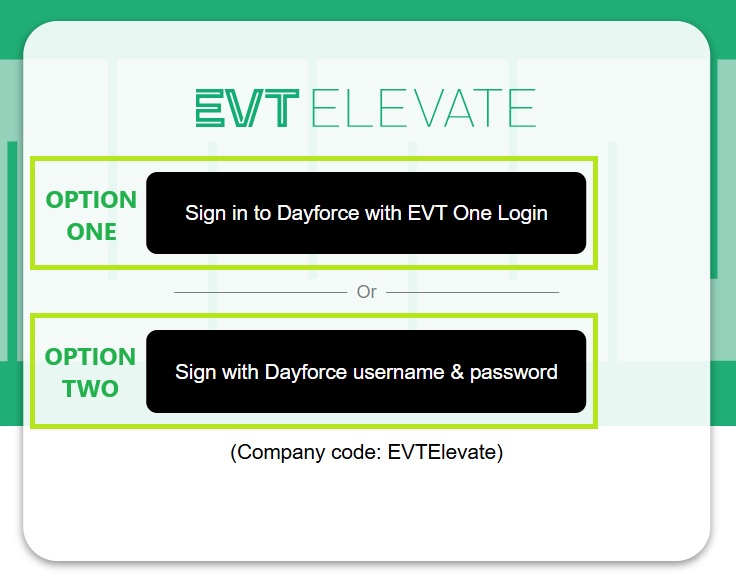
Please read the following carefully to ensure you choose the right method.
Option 1: EVT One Login (Single Sign On (SSO))
Available to: Active team members only.
This option uses your EVT One Login, which requires Microsoft Authenticator to be set up.
If you experience issues accessing EVT One Login or need a new TAP, please email the Thredbo Helpdesk at [email protected].
Logging In
When selecting this option, you will be asked to either pick an account or sign in. Here you will need to either select or enter your ‘…@evt.com’ address. You’ll then be prompted to enter your password, which will be either your TAP password or your computer access password (if you use a company computer).
Forgot your Password?
If your position does not require computer access, your EVT One Login will not have a password to reset. Instead, contact the Thredbo Helpdesk team to request a new Temporary Access Pass (TAP).
Option 2: Dayforce Username & Password (Recommended)
Available to: All user (including inactive team members)
Simply enter your Dayforce username and password to log in.
If you experience issues accessing your Dayforce account, please email the Dayforce Support team at: [email protected]
Logging In
When selecting this option, use the following details to log in:
Company: evtelevate
Username: Your Employee ID
Password: The password you created
Forgot your Password?
When logging in, if you reach the password step, select “Forgot Password”. You’ll be directed to the Reset Password screen. From there, you can choose:
‘User Name’ option – your username is your Employee ID number, or
‘Email’ option – use your ‘…@evt.com’ address.
If you face any issues resetting your Dayforce password, please email the Dayforce Support team at [email protected]
Dayforce App
The app is handy for quick checks, but keep in mind its features are limited and can’t do everything the browser can.
You’ll be able to access your Dayforce profile in the app once:
• Your contract is fully completed, and
• Your start date has passed.
Tip: We recommend signing in using your Username and Password, as this option is available to all team members.
Helpful Suggestions
• Bookmark the login link for easy access.
• If you’re using EVT One Login, make sure Microsoft Authenticator is installed and linked.
• For the smoothest experience, use Chrome or another modern browser.
If you are successful in joining us as a Thredbo Team Member here are some tips to help you accept your offer of employment.
Part 1 – Accepting Your Offer
Check your inbox for an email from your hiring manager (subject line includes “…offer of employment”) and follow the prompts to accept.
Part 2 – Onboarding to the Thredbo Team
Once you’ve accepted your offer, keep an eye out for your Welcome to Dayforce email – this is where your onboarding begins!
Tip: Complete your onboarding tasks on a desktop or use the desktop version of Dayforce in your mobile browser.
Below is a guide to help you through the process.
Step 1 – Log in to Dayforce for the First Time
Open your welcome email and click ‘Activate Your Account’.
Verify your identity (last 4 digits of your mobile).
Create your new password and log in using:
Company: evtelevate
Username: Found in your Welcome email (becomes your Employee ID)
Password: The one you just created
Complete the remaining setup steps.
Already verified?
Log in using this link: https://dayforce.evt.com and sign in using Option 2.
Login Options
Option 1: EVT One Login (Single Sign On (SSO))
Use EVT One Login, which requires Microsoft Authenticator to be set up.
Option 2: Dayforce Username & Password
Available to all users; just enter your details and you’re in.
Need help? Email [email protected].
Step 2 – Complete Your Onboarding Forms
There are five sections to complete. Each will show a green tick and say ‘Submitted’ when finished:
1. Emergency Contact – Who to contact in case of emergency
2. Employment Forms Australia – TFN, Super Choice, Direct Deposit, Employee Contribution. For more in depth information regarding these requirements see ‘Important Information for International Team Members’.
TFN Declaration Form
If you don’t have a TFN, you can select ‘I have made a separate application/enquiry…’ and make sure to let us know your TFN number once you have one.
Superannuation Standard Choice
If you don’t have a super fund, you can select ‘My employer’s default super fund’ or set one up and come back and complete this form.
Direct Deposit
You’ll need an Australian bank account. If you don’t have these details yet, complete the other sections first.
3. People Policies – Acknowledge EVT policies
4. Personal Information – Name, gender, health, etc.
5. Thredbo Policies – Acknowledge Thredbo policies
Once all five steps are completed, you have completed the Dayforce section of onboarding!
Employee Checklist: Optional but recommended – upload any required certificates (e.g., RSA) here. All certificates must be processed through Dayforce.
Part 3 – Check Work Rights
You’ll receive a separate email from CheckWorkRights with the subject line: Action Needed: Complete your checks with CheckWorkRights.
This email includes a link to the CheckWorkRights platform. Follow the link to provide proof of your work rights.
Didn’t receive the email? contact [email protected].
Returning team members must complete this step even if previously done.
If you’re joining us from overseas, you might find you can’t complete all your Onboarding tasks straight away because you don’t yet have an Australian bank account or Tax File Number (TFN). Don’t worry, here’s what to do.
Bank Details
If you reach the bank account stage and don’t have an Australian account yet, it’s okay to continue to the remaining Onboarding tasks and come back to this section.
Some banks allow you to open an account online before arriving in Australia and then provide ID to complete the setup once you’re in Australia. If that’s not possible, you can wait until you arrive and open an account in person.
Important: You cannot start work until your bank details are provided, so plan to allow a day or two before your first rostered shift to get this sorted.
Tax File Number (TFN)
You can only apply for a TFN after you arrive in Australia, but you can still complete the TFN section in your onboarding tasks beforehand. When completing the TFN form you can select “I have made a separate application/enquiry to the ATO.”
Once you arrive in Australia, apply for your TFN through the Australian Taxation Office (ATO). You have 28 days from the start date of your contract to provide your TFN to have the correct tax rate applied. If you supply your TFN after 28 days we are required to apply the highest tax bracket to your wages until a TFN is supplied.
When you receive your TFN, update your details in Dayforce to ensure your payroll information is correct.
What’s My Tax Status?
Your tax status, whether you’re an Australian resident for tax purposes, a foreign resident, or a working holiday maker, depends on your personal circumstances.
Helpful Hint: For more information on applying for a TFN, visit the ATO website: www.ato.gov.au
Superannuation Requirements
All team members are required to have a superannuation fund (often called a ‘super fund’ or simply ‘super’). In Australia, the superannuation system is the primary way most people save for retirement.
To learn more about superannuation, visit the ATO website (click to visit).
Types of Funds
1. Default Funds
Thredbo has three default funds. If you select “My employer’s default super fund: I want my employer to open a new account for me in their default fund”, an account will be opened on your behalf with one of the following:
• Australian Superannuation
• Hostplus
• CareSuper
2. Pre-Existing Super Fund
You can choose your own superannuation fund or carry on your existing fund.
To compare options and select a fund that suits your needs, visit the ATO Super Fund Comparison Tool.
3. Self-Managed Super Fund (SMSF)
You can set up a Self-Managed Super Fund. Please ensure you provide all necessary details during onboarding.
Where can I find my super fund account details?
Use ATO online services to track your super and find any accounts you have forgotten or lost touch with (click for more details).
If you are an active employee and chose a default fund, the super fund name can be found on your payslip in the Memo information section.
Tax File Number
Each employee has 28 days from their contract start date (not your first shift) to supply a tax file number otherwise they will be charged the highest tax rate by the Australia Taxation Office.
How to I find out my tax status or Tax File Number (an Australian resident for tax purpose or a foreign resident for tax purposes or a working holiday maker)
Everyone is different and there are various factors that determine your personal tax status. If you have any questions about your tax status contact the Australian Taxation Office (ATO). Their website is: https://www.ato.gov.au/
You can find your Tax File Number by logging into your My Gov Account. The website is: https://my.gov.au/
Superannuation Requirements
All team members are required to have a superannuation fund (often abbreviated to ‘super fund’ or ‘super’).
Types of Funds:
Default Funds:
Thredbo has three default funds. If you select “My employer’s default super fund: I want my employer to open a new account for me in their default fund” a fund will be opened on your behalf with one of the following three funds:
- Australian Superannuation
- Hostplus
- Care super
Pre-existing Super Fund
If you are already a member of a superannuation fund you can supply this information during onboarding, or anytime via submitting an ATO Super Choice Form to the P&C team.
Self-Managed Super Fund
If you have a self Managed super fund, please ensure you provide all necessary details during your onboarding.
I selected for my employer to create a super account with their default fund. Where can I find my super fund account details?
Your super fund name and account number can be found on your payslip in the bottom left-hand corner. Once you have these details you can contact the super fund directly and get the remainder of your super account details.
Some Thredbo team members are required to serve alcohol as part of their role, so Responsible Service of Alcohol (RSA) training is mandatory if this applies to you.
How to Enrol for an RSA Course
If you need to obtain an RSA certificate for your position, use the link provided to learn about the requirements and how to enrol in an RSA course (Follow this link).
If You Completed Your RSA Interstate
If you have moved permanently to NSW:
You must complete the RSA Bridging Course to work in NSW, even if you completed an RSA interstate within the past five years.
If you are not permanently relocating to NSW:
You can work using your approved interstate RSA (completed within the last five years), provided you understand your responsibilities under NSW liquor laws. In this case, the bridging course is not required.
Uploading your RSA and Other Certificates to Dayforce
If your role requires RSA, you’ll need to upload your RSA details into Dayforce.
Using the Dayforce App
- Log in to the app.
- Tap ‘Forms’ in the bottom menu.
- Choose Upload New Certificate and submit once completed.
Using a Desktop or Web Browser (mobile or desktop)
- Log in and click ‘Profile’ under Quick Links.
- Select ‘Forms’ from the tabs menu.
- Choose Upload New Certificate and submit once completed.
Helpful Hint: Make sure your RSA certificate is saved as a clear PDF or image file before uploading
Some Thredbo team members work closely with children and must have a valid NSW Working with Children Check (WWCC).
If your role requires this, you’ll be asked to provide your WWCC number before you commence you first day of work.
The following teams generally require a WWCC for some roles:
- Mountain Biking
- Snowsports
- Thredbo Leisure Centre
- Patrol
- Guest Services
- Marketing
Not sure if you need one?
Reach out to your hiring manager – they’ll confirm and assist you.
How to Apply for a WWCC
There are two stages, and both must be completed before your first shift:
Stage 1 – Online Application
- Complete the online application (Click to Apply)
You will need to enter 4 identification documents as part of your application. - Once submitted, you’ll receive an Application (APP) number by email
Stage 2 – In-Person Verification
- Visit a Service NSW location with your application number and original ID
- Complete verification within 28 days (or your APP number will expire)
- Pay the service fee.
- You’ll receive a confirmation email with your WWCC (usually within 48 hours).
- Send your WWCC number to your manager.
Service NSW Locations
Service NSW centres are only in NSW and open Monday to Friday (excluding public holidays).
The closest centre to Thredbo & Jindabyne is in Cooma.
Find a Service NSW location (Click to Search)
Not in NSW or Australia?
If you’re not in NSW or Australia, you can complete Stage 1 online from anywhere. Once you arrive in NSW, finish Stage 2 in person. If your application number expires, simply reapply and provide the new number.
Plan Ahead
If your role requires a WWCC, make sure you plan your travel so you can complete both stages before your first shift.
If your position requires a WWCC, you cannot commence work until your onboarding is complete and your WWCC has been provided and verified.
Need to update your details? You can easily change your address, phone number, bank, tax, and super info anytime in Dayforce! Here’s how:
Using the Dayforce App
-
- Log in to the app.
- Tap ‘Forms’ in the bottom menu.
- Select the form you need and submit once completed.
Using a Desktop/Web Browser
-
- Log in and click ‘Profile’ under Quick Links.
- Select ‘Forms’ from the tabs menu.
- Choose the form you need and submit once completed.
Check out this help sheet: How to Update Payroll Forms in Dayforce
Tip: When updating your bank details, make sure you fill in both the account number box and the re-enter account number box.
If you need any assistance, please reach out to the People & Culture team or visit the People & Culture office. For more details, check the Team Member Support section on this page.
Once you’ve accepted your contract, you can download a copy using one of these methods:
Option 1: Through Dayforce via desktop or mobile web browser
- Log in to Dayforce
- Tap or click the Menu icon (☰) in the top-left corner.
- Select Profile from the menu.
- Go to the Personal tab and choose Letters from the dropdown.
- Your contract will be listed there – click to download.
Option 2: From Your Offer Email
- Simply use the link in your original Offer of Employment email to open your contract directly – then click to download.
Rosters, Training and Communication
You’ll complete your training in Dayforce Learning, and using a desktop is the smoothest way to go, but any web browser (on mobile or desktop) will work.
Steps to Get Started
- Log in to Dayforce
- On the home page, look for Quick Links or tap/click the Menu icon (☰) in the top-left corner.
- Select Learning.
- Head to My Courses and Learning Plans. This is where your assigned training is found.
-
Teams will be your all-in-one place to chat, collaborate, and celebrate including access to Viva!
-
You’ll use your EVT One Login with Microsoft Authenticator to securely access Teams, one app for all communications.
- Chat: Quick messaging for one-on-one or in groups
- Channels: Organised spaces for team planning, collaborating, and file sharing
- Viva: Celebrate moments, and connect with company news
- Download Microsoft Authenticator and Teams apps
- Look out for your EVT One Login email from EVT Elevate where your temporary password will be valid for 14 days
- Follow the steps to log in and get started
-
Already have access to Teams? You don’t need to do a thing but get on Viva!
See the below links for some tips to get you started:
Getting Started with Viva and Teams
Having trouble accessing Teams? Check out these tips:
Are there instructions for setting up Teams?
Yes, we sure do! Please check out the link below, which will take you to instructions on how to install the Teams app and log in for the first time.
Click here for your guide to setting up Microsoft.
Logged in but got kicked out randomly?
This usually means Microsoft Authenticator wasn’t set up correctly, and access can time out after 14 days.
- Make sure your device is registered during setup.
- Allow notifications for Microsoft Authenticator (required for approval prompts).
For more details about setting up Microsoft Authenticator, please check out below “How do I set up Microsoft Authenticator so I can access Microsoft Teams?”
How do I set up Microsoft Authenticator so I can access Microsoft Teams?
To access Microsoft Teams, you’ll need to set up Microsoft Authenticator.
Click here to view the setup video.
Got a new phone or device?
Teams is directly linked to your Microsoft Authenticator, and your Authenticator account can only be registered on one device at a time.
If you’ve switched devices or no longer use the original one you set up, you’ll need to:
- Deregister your old device by contacting the Thredbo Helpdesk Team.
- Then, set up Microsoft Authenticator on your new device to restore access to Teams.
Authenticator didn’t send a code/prompt to your phone?
On Android devices, this can sometimes happen if Battery Optimisation is turned on. While this feature helps improve battery performance, it can prevent Microsoft Authenticator from running properly in the background.
Below are the steps to check and turn off battery optimisation for Microsoft Authenticator.
- Look for a red dot on the Authenticator app’s ellipsis (three‑dot) menu — this indicates that battery optimisation is turned on.
- To turn off Battery Optimization for Microsoft Authenticator:
1. Open Settings → Battery (or Apps → Microsoft Authenticator → Battery).
2. Find Battery Optimization / Optimize battery usage.
3. Set Microsoft Authenticator to Don’t optimize / Allow background activity. - Also check notificationsMake sure notifications are enabled for Microsoft Authenticator:
1. Go to Settings → Notifications → Microsoft Authenticator
2. Ensure Allow notifications is switched onOn an iPhone?
If you’re using an iPhone, check the following:
● Go to Settings → Notifications → Authenticator → Make sure Allow Notifications is turned on
● Confirm that Focus or Do Not Disturb isn’t blocking prompts
Arriving from overseas and can’t set up accounts?
For our international team members: initial Authenticator setup may not work until you’re in Australia.
Once you arrive:
- Try setting up over Wi‑Fi (instead of international roaming).
- If issues persist, contact the Thredbo Helpdesk Team.
How do I reset my password?
If your position does not require computer access, your EVT One Login will not have a password to reset. Instead, contact the Thredbo Helpdesk team to request a new TAP at [email protected].
Who do I contact if I’m having trouble with my Microsoft Teams account?
If you’re experiencing any issues accessing or using Microsoft Teams, please contact the Thredbo Helpdesk team. They can assist you with troubleshooting and, if needed, raise a request for a new TAP on your behalf.
You can reach the Helpdesk team at [email protected].
Emplive is our rostering system at Thredbo. You can login to Emplive via your internet browser or you can download the app for free from the Google Play Store or the Apple Store.
How to set up Emplive:
After you have completed your onboarding you will receive an email with your login details. The email will have a temporary password active for 24 hours.
If you miss this or the original email, please request a new one from EVT Payroll by sending them an email at [email protected] – make sure to include your full name and Employee ID.
How to Login:
- Link to Emplive platform: https://ess.emplivecloud.com/SignInEL20.aspx
- Your username: Employees 6-digitID@thredbo (For example: 123456@thredbo)
- Your password: The password that was chosen by you
How to reset your password/forgotten password
- Select the ‘forgotten password’ option on the login page
- Enter your username
- You will receive an email from [email protected] with the subject line ‘ESS Reset Password Link’
- You will have 24 hours to follow the link and create a new password
Emplive How to Guides
- How to log in to Emplive
- How to access your roster using Emplive on a desktop
- How to access your roster using the Emplive app
- How to add unavailability using Emplive on a desktop
- How to add unavailability using Emplive app
- How to apply for leave using Emplive on desktop
- How to apply for leave using Emplive app
How to see your Snowsports instructor schedule
Flaik is our Snowsports Instructor scheduling system. This is where you submit your season availability, see your schedule, sign up for training clinics and more!
**Please note that the start date on your contract is not necessarily your first day at work. Please refer to Flaik to confirm the date of your first shift for work/training.
You can log in to Flaik via your internet browser. The Flaik user guide is a great source of further information.
Flaik’s Snowsports Certifications
You can view a list of Flaik’s certifications here.
How to log in:
You will receive an invite via email from Flaik with login information.
- Link to Flaik platform: https://thredbo.flaik.com/guest/login
- Your Username: Your nominated email address
- Your Password: The password chosen by you. Password must be at least six characters long and include at least one number
How to reset your password or forgotten password?
- If you get an error saying username or password incorrect – please click on the forgot your password link above the login button to reset your password.
- Flaik will ask you to enter your email address. This address does not need to be the one associated to your Flaik account.
- Click send, complete the verification and a confirmation should appear.
Employee ID
You will be issued an Employee ID once your onboarding is complete. This will be emailed to you from the People & Culture Team at Thredbo.
If you need help or can’t find the original email please reach out and we can send you your employee ID.
Returning Team members:
Team Members receive a new employee ID each time they are re-hired. The Employee ID is your profile per employment.
It allows you to log in and access your pay history.
The Alpine Resort Award (ARA) is our way of recognising and celebrating the best in managing and running alpine resorts, focusing on outstanding guest experiences, environmental practices, and overall resort excellence.
Link to FairWorks ARA : https://library.fairwork.gov.au/award/?krn=MA000092
Follow the link to find more details on:
- Coverage: The scope and who the award applies to.
- Key Provisions: Details about pay rates, working conditions, and entitlements.
- Modern Award: The legal framework and conditions relevant to retail industry employees.
- Updates and Amendments: Information on any recent changes or updates to the award.
Team Member Support
You can find us in the Valley Terminal building. See here for our People and Culture location.
Email: [email protected]
Phone: 02 6459 4186
Winter operating hours: Monday to Sunday 8:30 am – 4:30 pm
Summer operating hours: Monday to Friday: 8:30 am – 4:30 pm
Here is a map of the Thredbo Village and what is available.
Should I get health insurance?
We strongly recommend all team members obtain ambulance cover (available through your health fund or travel insurance) before arriving in Thredbo.
An ambulance ride could set you back thousands of dollars to get to the nearest hospital.
Ambulance cover can be purchased for less than $50 a week from various private health funds and is well worth the additional expense.
Interstate Team Members:
If you already have ambulance cover, but are not from NSW, please check the conditions of the cover for NSW on your policy.
International Travellers:
It is very important to have some health cover while you are in Australia as it can be costly for International team members who are not eligible for Australian Medicare. Make sure to review your travel insurance for ambulance and hospital cover.


Team Accommodation
Team accommodation is offered to eligible team members.
During the application process you will be asked if you require accommodation, please ensure you answer this correctly. If invited for an interview, the hiring manager will then discuss accommodation options further.
If accommodation is offered, you’ll be notified when you accept your employment offer.
As we are unable to guarantee team accommodation, we encourage you to explore private options in the area. For the Winter season, many options become available between late February and early May, and we recommend reaching out early to local real estate agents, as well as checking with friends and seasonal connections.
Where is team accommodation located?
- Winter team accommodation is based in and around Thredbo, Jindabyne, Tyrolean, and East Jindabyne.
- Summer team accommodation is based in Thredbo Village.
How much does it cost?
- Before checking in, you will need to pay a $100 admin fee and a $500 security deposit.
- Included in the cost of accommodation is a weekly allowance for utilities.
- Your rent will be deducted from your pay at the end of each week.
- We also recommend having a little spare cash upon arrival as you will need to pay 7 nights rent upfront at check in. You may also have to outlay purchases of linen, doona, pillow etc if coming from interstate or overseas.
Rent Costs per person per week
- Summer 25/26 rates:
- Thredbo: $217
- Winter 2026 rates:
- Jindabyne: $259
- Thredbo 3 person share: $217
- Thredbo: $273
Do I have to share accommodation?
Yes, team accommodation is on a shared basis (i.e. more than 1 person per room) in a self-contained apartment, dormitory, or lodge style accommodation.
Can I choose who I live with?
You may request to share a room with your partner or friend, and we will do our best to accommodate any requests, but it cannot be guaranteed. If not sharing with a partner, you will be roomed with a person of the same gender. You will be able request who you wish to share with when you book your check in appointment time. Family or friends that are not employed by Kosciuszko Thredbo cannot be accommodated.
When can I move in?
- Once you have paid your admin fee and security deposit you will be sent an email with information about how to book a check in appointment.
- You can check into accommodation up to 3 days before your first scheduled day of work. Your first day of work may not be the same as the start date on your contract. Please wait until your manager has confirmed the date of your first shift before booking your check in time.
- Winter: Check in is available 7 days a week in both Thredbo and Jindabyne.
- Summer: Check in is available in Thredbo Monday – Friday 8.30am – 4.30pm
What do I need to Bring?
- Pillows, Doona, Sheets, Linen, Blankets, and Covers. (for hygiene reasons these items are not supplied)
- Mattress Protector
- Bath towels, bath mat and tea-towels
Bed Sizes:
- Single person: Bring bedding for a king single size as this will cover you for any size of bed.
- Couple: Bring king-sized bedding as this will cover you for any size of bed.
What else is provided?
Due to having a variety of properties supplied by various owners, we are unable to provide a detailed list of all items within each location. However, accommodation comes with a basic kitchen including a fridge, oven, cutlery, crockery, cooking utensils and a lounge area plus heating.
Team Accommodation Maintenance
Follow this LINK to report a maintenance issue.
For anything urgent please call 0264594186.
- Winter operating hours: Monday to Sunday 8:30am – 4:30pm
- Summer operating hours: Monday to Friday: 8:30am – 4:30pm
Gas Information
If your property requires gas.
It is your responsibility to familiarise yourself with the location of the gas tanks and regularly check if they require replacement (see attached gas information help sheet how to).
All properties have two gas tanks, once the first is empty, email [email protected] to order a new gas bottle.
Deliveries only occur once a week and can take up to 7 days to arrive.
Electricity
Familiarize yourself with the location of your electricity switchboard/breaker box.
Common issues needing your electrical breakers a reset:
- Overloaded power sockets or power boards
- Faulty appliance
Keys
- Replacement keys are not available after hours. You are responsible for maintaining possession of your key. People & Culture can provide keys for accommodation during business hours only (8.30am-4.30pm).
- If a key is lost, replacement will incur a fee of $25.
Other Helpful guides for living in team accommodation
When it’s time to check in, the People & Culture team will guide you through the process. Your check-in location and hours depend on the season and your accommodation allocation.
Please see the details below:
Summer – Thredbo
Location: Valley Terminal Reception, Thredbo Village, NSW 2625
Hours: 8:30 am – 4:30 pm, Monday to Friday
Winter – Thredbo and Jindabyne
During winter, there are two check-in locations and your allocation of will determine where you check in:
Thredbo (On Mountain Properties)
Location: Valley Terminal Reception
Hours: 8:30 am – 4:30 pm, 7 days a week
Jindabyne (Off Mountain Properties)
Location: Jindabyne (full details will be provided in your email)
Hours: 8:30 am – 4:30 pm, 7 days a week
Important: Bookings are essential during winter.
If you’ve decided to move out, that’s completely fine!
There’s no minimum notice required, and you can leave anytime. However, it really helps if you let us know your plans.
Follow these steps to check out:
- Notify People & Culture
Email [email protected] to notify us of your planned departure date and check out location. - Clean the property
Complete a thorough clean, using this checklist as a guide. This applies even if other tenants remain. Your housemates will be asked to confirm your contribution. - Remove Belongings
Take all personal items and food with you. - Return Keys
On your departure day, visit one of the following locations:- People & Culture Office – Valley Terminal Reception (Mon–Fri, 8:30am–4:30pm)
- Thredbo Alpine Hotel Drop Box – Front Office Reception (24/7)
At the drop-off point:- Use the QR code on the drop box to complete the online check-out form.
- Place your keys in the provided envelope.
- If keys are lost, note this on the form (a lost key fee will apply).
Important: Failure to return keys or complete your check-out form on the same day will result in rent being deducted until keys are returned or the form is submitted.
Finding the right place to stay is an important part of your Thredbo experience. There are plenty of opportunities for private accommodation during winter, summer, or year-round. Below are some helpful links to assist you in finding a place that suits your needs.
Local Real Estate Agencies
If you’re looking for something more permanent or seasonal, these local agencies can help:
Belle Property (formerly Henley Property)
Social Networking Groups
Community groups are a great way to find shared housing or short-term rentals:
Facebook: Thredbo Notice Board
Facebook: Looking to Live Around Jindabyne
Facebook: Jindabyne Notice Board
Facebook: “Jindy” Notice Board
Tip: Start your search early, especially for winter, as accommodation options can become limited quickly. Consider joining multiple groups and setting alerts for new listings.
Transport and Parking
Thredbo is located within Kosciuszko National Park, and all vehicles require a valid entry pass.
As a team member, you’re eligible for a discounted Team Member Pass for $38.
Please note: The Team Member Pass is only valid for Thredbo within Kosciuszko National Park. If you’d like access to other areas within the park, you may need to purchase a non-team member pass at full price.
Application Process
To purchase your pass, you’ll need to complete an application form (click here to access the form).
When submitting your application, please include:
• A copy of your car registration in the name that matches the application, or
• A copy of the vehicle’s insurance policy that includes the name matching the application form.
Once you have both items, you’re ready to submit your form to the Kosciuszko National Park team. You can:
• Submit in person at either the Snowy Region Visitor Centre or the Kosciuszko Road Visitor Entrance Station, or
• Submit via email at [email protected]. Once approved, payment can be processed over the phone. Be sure to include your name and contact details so the team can call you once your application is approved.
The Kosciuszko National Park team is provided with a list of current Thredbo team members. If your name is not on this list, please contact the People & Culture team, who will provide you with a Letter of Employment to include with your application.
The Team Member Pass is only valid for Thredbo within the Kosciuszko National Park. If you’d like access to other areas within the National Park you may be required to purchase a non-team member pass at full price.
If you’re bringing a car to Thredbo, there are designated parking areas available for both day visitors and overnight stays.
See where to park in Thredbo – Thredbo’s parking locations here.
Check out our Parking Information page for everything you need to know about parking while at Thredbo – Find out more here
During winter, the Snowy Mountains Bus Service, operated by Transport for NSW in partnership with Cooma Coaches, is one of the most convenient and cost-effective ways to travel during the ski season.
Season Ticket
The Season Ticket is a great value option for regular travel throughout the season.
Service Routes Include:
Jindabyne ↔ Thredbo (via Skitube)
Jindabyne ↔ Perisher
Cooma ↔ Jindabyne (via Berridale)
Station Resort (Jindabyne) ↔ East Jindabyne and Tyrolean Village (via Snowy Region Visitor Centre)
The service runs 7 days a week, from opening weekend to closing weekend.
For more details, visit the Snowy Mountains Bus Service website (click to view)
Other Transport Options
Over winter, there are multiple seasonal public transport services to Jindabyne and Thredbo starting around opening weekend.
Tip: Plan your trip early and allow extra time for weekends and public holidays, as there may be road closures or delays.
Helpful Services and Links
Planning your trip? Here are some great transport options to get you to the Snowy Mountains:
Summer Team Member Bus Service
During summer, team member buses operate between Berridale, Jindabyne and Thredbo for a $10.00 weekly wage deduction.
Seats are limited, and there are three different services available from the October long weekend through to early June.
Jindabyne – Thredbo Service 1
Available: Monday to Friday
Morning
• Pick Up: Jindabyne Bowling Club – 6:20am
• Drop Off: Thredbo Engineering Workshop – 6:50am
Afternoon
• Pick Up: Thredbo Engineering Workshop – 5:00pm
• Drop Off: Jindabyne Bowling Club
Jindabyne – Thredbo Service 2
Available: Monday to Friday
Morning
• Pick Up: Jindabyne Central School parking lot – 6:50am
• Drop Off: Thredbo Info Centre – 7:20am
Afternoon
• Pick Up: Thredbo Info Centre – 4:30pm (Mon-Thurs) & 4:00pm (Fri)
• Drop Off: Jindabyne Central School parking lot
Berridale via Jindabyne to Thredbo Service
Available: Ask for timetable
Morning
• Berridale Pick Up: Post Office Parking Lot (Bus lane) – 7:10am
• Jindabyne Pick Up: Jindabyne Central School parking lot – 7:30am
• Drop Off: Thredbo Info Centre – 8:00am
Afternoon
• Pick Up: Thredbo Info Centre – 5:10pm
• Jindabyne Drop Off: Jindabyne Central School parking lot
• Berridale Drop Off: Pub Carpark
To sign up, simply complete the form during your first trip by scanning the QR code located on the bus.
During the winter season, Transport NSW offers an SMS alert service to keep you updated on road conditions, closures, and re-openings. This is especially helpful for planning your travel to and from Thredbo during peak snow season.
To subscribe, click here.
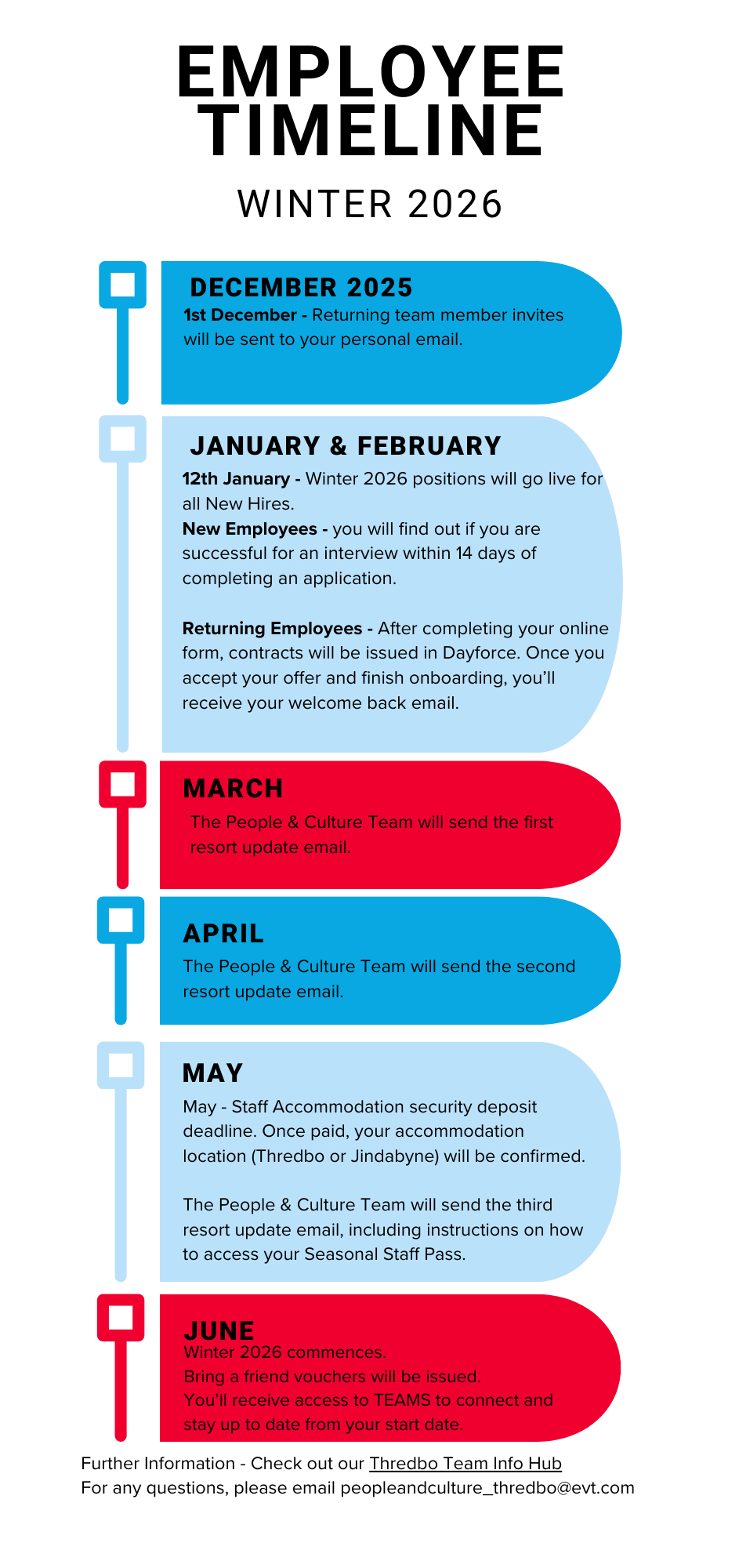
Winter Recruitment Timeline
Whether you ski, snowboard, hike, mountain bike or are visiting for the first time, our app is your companion to Australia’s Premier Adventure Destination.



Sign up for news
Subscribe to our newsletter to receive deals, the latest weather, forecasts, news, events and more!
Thredbo sits on the traditional land of the Monero – Ngarigo people who have looked after this land, water and community for over 60,000 years. We thank them for all they have done and continue to do to look after their country, a special place which we all love and respect.